The best tablet for work is not necessarily the most expensive iPad or the model with the fastest processor. It is the device that handles your actual day without creating a second set of problems. For most people, that means email, video calls, documents, browser tabs, note-taking, and enough battery to leave the charger in your bag for a few hours.
I have helped plenty of shoppers compare tablets in stores, and the same mistake comes up repeatedly: they buy based on a bright display or a dramatic processor name, then discover that the keyboard is cramped, the software is awkward, or the accessories cost another $200. A better approach is to start with your work habits and budget. Buy the version you will still like in six months.
Start with the kind of work you actually do
If your work is mostly Gmail, Slack, Microsoft Teams, Google Docs, Zoom, and web-based systems, a midrange tablet can be surprisingly capable. An Apple iPad Air, Samsung Galaxy Tab S9 FE, or Microsoft Surface Go can cover that routine when paired with a comfortable keyboard. You will get a portable screen, quick startup, and easy couch-to-desk flexibility without carrying a full-size laptop everywhere.
The best tablet for work changes when your job depends on desktop software. Accountants using complex Excel models, designers working in professional creative apps, and developers managing local tools will usually be happier with a Windows laptop or MacBook. Tablets can open many files, but opening a file is not the same as working comfortably for eight hours. Pay attention to your least convenient task, not your easiest one.
Also consider how often you type. Occasional replies do not require a premium keyboard, while a writer or project coordinator may spend several hours entering text. A detachable keyboard with a firm hinge can matter more than a faster chip. If you will notice it every day, it matters.

The strongest options for different budgets
For a straightforward Apple setup, the iPad Air is often the best tablet for work for people already using an iPhone, Mac, or iCloud. Its app selection is broad, the screen is comfortable for documents, and features such as Continuity can make moving between Apple devices less frustrating. Add a keyboard case and Apple Pencil only if you will use them; buying every accessory at checkout can push the total close to laptop money.
The standard iPad is the value choice for email, reading, video calls, school portals, and light office work. It is less luxurious than the Air, but it can be a sensible purchase around the mid-$300 range before accessories. Storage deserves attention because the base capacity can feel tight if you download large files, videos, or games.
Samsung's Galaxy Tab line makes sense for Android users who want a bright display, expandable storage on some models, and useful multitasking. Samsung DeX can provide a more desktop-like layout, which helps when you keep several apps open. The best tablet for work in this group may be a Galaxy Tab if you use Android phones and prefer Google services over Apple's ecosystem.
A Surface Pro or Surface Go is the better fit for someone who needs Windows apps, Microsoft 365, or a familiar desktop file system. The tradeoff is price and accessory planning. Microsoft keyboards and pens are often sold separately, so compare the complete bundle instead of trusting the tablet's starting price. For some shoppers, a basic Windows laptop will deliver more ports and better typing for less money.
Specs that matter more than the sales pitch
Screen size affects your shoulders, your eyes, and your willingness to use the device after work. An 11-inch tablet is easy to carry and works well with a compact keyboard. A 12.9-inch or 13-inch model is better for split-screen documents and spreadsheets but feels more like a laptop in a bag. Weight matters too, especially if you commute by train or move between meetings.
RAM and processor names are useful only when translated into behavior. For normal office work, you want apps to open quickly and several browser tabs to remain responsive. Eight gigabytes of RAM is a comfortable target for many current tablets, while more demanding multitasking benefits from additional memory. Do not pay for a top-tier chip if your routine is mostly email and calendar management.
Battery claims are measured under controlled conditions, not a day filled with video meetings and bright screens. Look for realistic all-day use, USB-C charging, and a charger that can also power your phone. A 30-watt USB-C charger and a spare cable in your bag can be more useful than a tiny benchmark advantage.
Storage is another quiet source of regret. For cloud-first work, 128GB may be adequate. If you keep presentations, photos, downloaded shows, or design files locally, 256GB gives you more breathing room. Cloud storage is convenient, but relying on it completely can be painful during a flight or in a weak signal area.
Accessories can decide whether you keep it
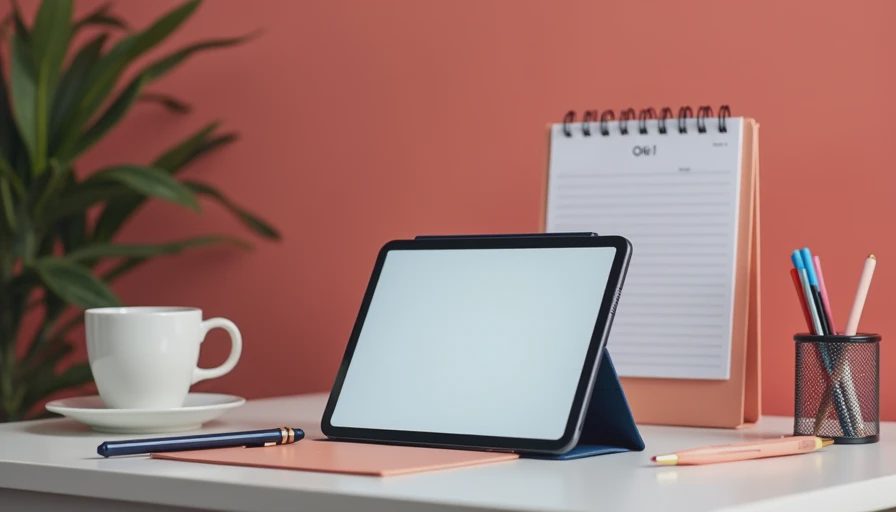
A tablet without a good stand is often used at an uncomfortable angle. A case with multiple viewing positions costs roughly $30 to $100 and can prevent the screen from becoming a neck-level nuisance. For typing, test the keyboard layout before committing. Some slim cases have shallow keys and a cramped trackpad that feel fine for five minutes in a store but tiring after a full report.
A Bluetooth mouse can improve spreadsheet work, although touch remains perfectly fine for reading and casual navigation. If you join meetings regularly, check microphone placement and camera angle. A detachable setup may place the camera below eye level, making calls feel less natural unless the tablet is raised on a stand.
For the best tablet for work, accessories should solve a real problem rather than complete an imagined desk setup. Buy the keyboard if you type daily, the pen if you annotate or sketch, and the hub if you genuinely need an external monitor, USB drive, or wired network connection. Otherwise, keep the bundle simple and spend the difference on storage.
Common buying mistakes to avoid
The first mistake is treating a tablet as a cheap laptop without checking software. iPadOS and Android are excellent for many tasks, but their file handling and app versions can differ from desktop software. Confirm that your employer's tools work before buying, especially if you need VPN access, remote desktop, or specialized browser extensions.
The second mistake is choosing the smallest storage option because the sale price looks attractive. A $100 discount disappears quickly if you must delete files every week. The third is buying a cellular model without a clear need. Wi-Fi is enough for many home and office workers, while a phone hotspot can cover occasional travel. Cellular service adds a monthly cost.
Finally, do not ignore returns and warranties. Set up your work apps during the first week, test the keyboard, join a real meeting, and open the documents you use most. The best tablet for work should feel calmer after that test, not more complicated.
My practical recommendation
For most office workers, I would start by comparing an iPad Air, Samsung Galaxy Tab, and Windows Surface option with their complete keyboard bundles. Choose the iPad Air for a polished ecosystem and strong everyday apps, Samsung for flexible Android multitasking, and Surface for genuine Windows requirements. If your budget is closer to $300, a standard iPad or a Samsung midrange model can still be useful, provided your work is browser-based.
The best tablet for work is the one that fits your typing, software, travel, and charging habits without making you overspend. Before clicking Buy, price the tablet, keyboard, case, charger, and storage together. Then ask whether a similarly priced laptop would handle your hardest task better. A good device should make your day easier, not louder.


No comments yet.