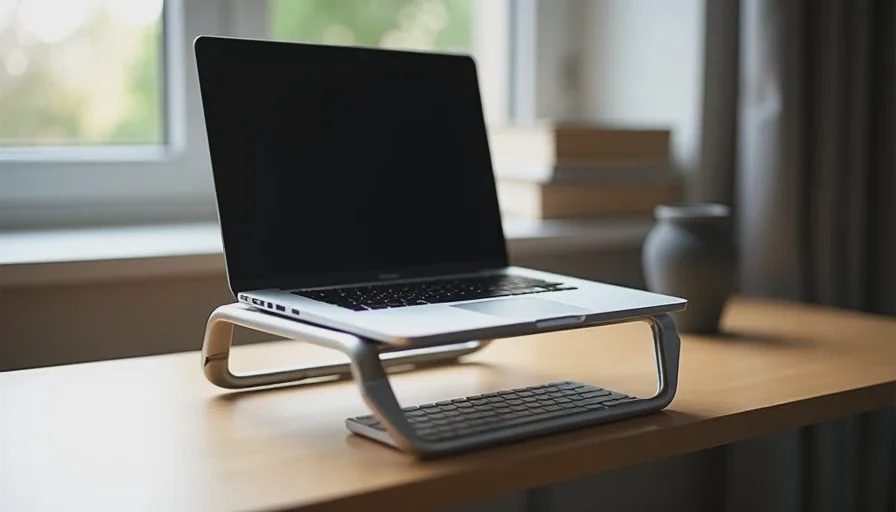
I used to work with the laptop flat on the desk like most people. After a few hours the neck and shoulders started to complain. Raising the screen felt like an obvious fix, yet many stands I tried created new problems: they wobbled, took more depth than the desk could spare, or forced the keyboard into an awkward angle. The right stand should reduce strain without making the rest of the setup harder to live with.
A laptop stand is one of the simplest upgrades that can improve a workday, but only if it matches the desk size and the way you actually type. On a small desk the wrong stand can feel like it claims more space than it frees. On any desk a stand that leaves the laptop keyboard at a steep angle becomes tiring in its own way. The goal is straightforward: lift the screen closer to eye level, keep the arrangement stable, and leave enough room for an external keyboard or comfortable typing.
Why Neck Fatigue Shows Up So Quickly
When the laptop sits flat, the screen sits too low. Most people tilt their head downward for hours. The muscles at the back of the neck and across the shoulders stay under constant low-level load. By mid-afternoon the discomfort is familiar enough that many people stop noticing it as a solvable problem.
Raising the screen reduces that downward tilt. The improvement is often noticeable within the first full day. The rest of the setup has to cooperate. If the stand is unstable, if it forces a cramped keyboard position, or if it leaves no room for a mouse or notebook, the new irritation can replace the old one.
What Matters on a Small Desk
Footprint and Depth
Small desks punish stands with large bases or wide legs. A stand that extends far toward the front of the desk leaves little room for an external keyboard or for writing. I look for designs that lift the laptop while keeping the base compact front-to-back. Vertical or gently inclined risers that sit mostly under the laptop itself tend to work better than long tripod-style legs on limited surfaces.
Stability Without Bulk
A stand that flexes or shifts when you type becomes a constant distraction. Solid construction matters more than elaborate adjustability. Many simple aluminum or rigid plastic stands provide enough height and remain steady without requiring a large clamping system. On a small desk a clamp can be useful if the desktop is thick enough and the clamp does not interfere with drawers or legs.
Height Range That Actually Helps
The screen does not need to reach standing-desk height. It needs to rise enough that your eyes meet the top third of the display without dropping your chin. For most seated positions that means several inches of lift. Stands with fixed heights can work well if the height is well chosen. Adjustable models are more flexible but only if the adjustment mechanism stays solid under the laptop’s weight.
Pairing With an External Keyboard
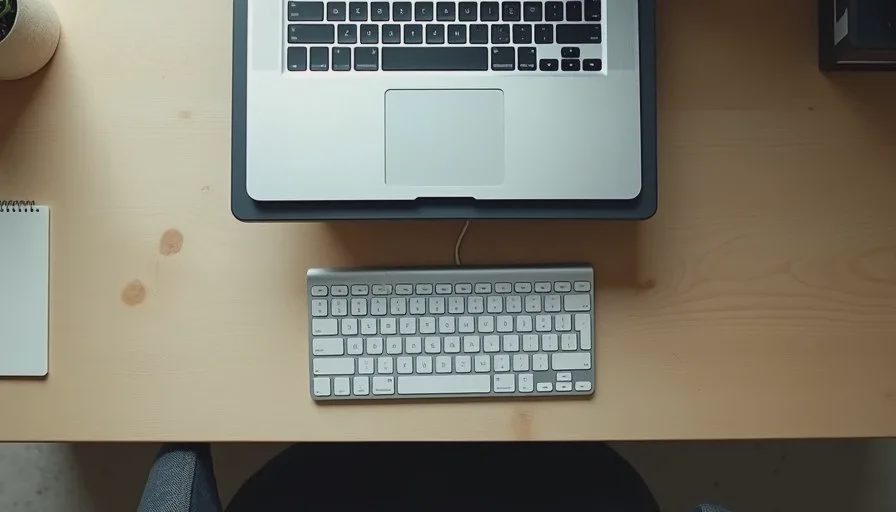
Once the laptop is raised, the built-in keyboard usually becomes too high or too steep for comfortable typing. An external keyboard is the practical companion. On a small desk that keyboard needs to fit in the remaining space without hanging off the edge. Choosing a compact keyboard and a stand with a modest footprint makes the combination workable.
Stand Styles That Tend to Work
Simple Riser Stands
These are solid platforms or angled plates that lift the laptop to a fixed height. They have few moving parts, take modest space, and are easy to move. On a small desk their predictability is an advantage. The limitation is the lack of height adjustment, so the fixed height needs to suit your chair and posture.
Adjustable Aluminum Stands
Folding or scissor-style aluminum stands offer height and sometimes angle changes. Many collapse for travel. The better ones remain stable at working height and do not flex when you type on an external keyboard. Lower-quality versions can wobble or require frequent tightening. Real use quickly reveals the difference.
Clamp-Mounted Arms
A clamp arm frees almost the entire desk surface underneath. It is powerful on a small desk if the clamp fits the desktop thickness and does not block drawers. The trade-off is less portability and a more permanent presence. For a fixed home desk the space savings can be significant.
What I Avoid After Real Use
Stands with excessive adjustability that never stay tight. Stands whose base claims the entire front edge of a small desk. Stands that raise the laptop so high the external keyboard feels disconnected. Stands made of materials that flex under a typical 13- or 14-inch laptop.
I also pay attention to how the stand treats ventilation. Some solid platforms block airflow and allow the laptop to run warmer during longer sessions. Open designs or stands that leave space under the chassis help keep temperatures reasonable.
How I Test a Stand in the First Two Weeks
I use the same keep-or-return approach I apply to every accessory. After several full workdays I look for quiet signals:
Does my neck feel better by mid-afternoon?
Does the stand stay put when I type?
Is there still room for a keyboard, mouse, and a notebook?
Do I ever remove the stand because it feels like more trouble than help?
If the neck improvement is clear and the desk still feels usable, the stand stays. If new friction appears—wobble, wasted space, or awkward typing reach—the stand goes back. Two weeks of ordinary use is usually enough to decide.
https://inline-neck-friendly-desk-setup.jpg
Practical Setup Tips for Small Desks
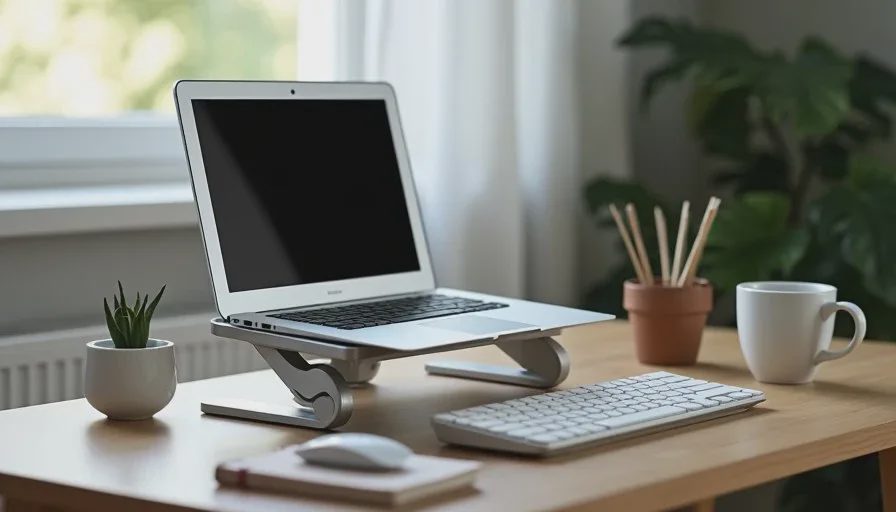
Measure the available depth before buying. Leave enough room in front of the stand for the external keyboard you actually use.
Choose a keyboard that is compact enough for the remaining space. Full-size boards with number pads often make small desks feel tighter.
Keep the most-used items—pen, notebook, phone—within easy reach so the raised laptop does not force constant stretching.
If you move between rooms or travel occasionally, consider a stand that folds flat. A stand that only works at one desk becomes less useful in a hybrid routine.
Cable routing matters more once the laptop is elevated. A short charging cable can pull the laptop or create clutter at the new height. A cable of comfortable length keeps the setup tidy.
Common Mistakes I Still See
Buying the tallest or most adjustable stand without checking the desk depth. Assuming any riser will fix posture while continuing to type on the laptop keyboard at a steep angle. Choosing a stand that looks minimal in photos but spreads wide once the laptop is on it.
Another frequent issue is ignoring the chair height. Raising the screen helps only if the chair and desk relationship already allows a reasonable seated posture. A stand cannot compensate for a chair that sits too low or too high relative to the desk.
What a Good Stand Feels Like After a Month
The stands that remain in use become invisible. The screen sits at a height that keeps the neck neutral. The base does not intrude on the keyboard space. Stability is simply present. The overall desk feels calmer rather than more complicated. Neck and shoulder fatigue decrease enough that the improvement registers as the absence of a previous complaint.
That quiet competence is the standard. A laptop stand should remove a daily irritation without introducing three new ones. When it succeeds, it is one of the highest-value low-cost changes available for ordinary office and hybrid work.
Final Thought
If your neck is tired and your desk is small, the right laptop stand can improve both posture and usable space. Focus on a compact footprint, solid stability, enough height to reduce downward tilt, and compatibility with an external keyboard. Test the arrangement under real work conditions for two weeks before you decide it is permanent.
A good device should make your day easier, not louder. The same rule applies to the stand that holds it. Choose the one that disappears into the setup and leaves your neck and your desk better than it found them.


No comments yet.